
Updated October 2026: re-tested on WordPress 7.1 with two installs sharing one database. First published in 2018.
This guide sets up two separate WordPress installs, Site A and Site B, so they share the same user accounts and the same login: log in on one and you are logged in on the other. I first needed it in 2018, when I added a bbPress and BuddyPress community (Site B) next to a main site (Site A) that had to stay a separate install. Both were on the same server, which is what makes this approach possible.
Before you start: is this the right approach?
- If you can start fresh, use Multisite. A WordPress Multisite network shares users and logins between its sites out of the box, with no wp-config changes.
- If the sites are on different servers or different domains, this method will not work. It needs one database and cookies on one domain. The WP Remote Users Sync plugin syncs users over HTTP instead. As of October 2026 it was last updated in October 2025 and tested up to WordPress 6.8, so test it on a staging copy first.
Requirements
- Both sites use the same database, with different table prefixes.
- Both sites are on the same domain, in subdomains or subfolders.
- You can edit wp-config.php on both sites, over FTP or your hosting file manager.
- A fresh backup of the database and both wp-config.php files. I use WPvivid on this site, but any backup plugin that covers the database works.
Step 1: Put Site B in Site A’s database
Check Site A’s table prefix
Open Site A‘s wp-config.php and find this line:
$table_prefix = 'wp_';Code language: PHP (php)It is usually wp_. If yours is different, use your prefix wherever this guide says wp_.
Install Site B with a different prefix
Install WordPress for Site B in a subdomain or subfolder, pointing it at Site A’s database but with its own table prefix. I use com_, short for community. If your installer does not let you choose the database or prefix, change them afterwards in Site B’s wp-config.php:
define( 'DB_NAME', 'siteAdatabase' );
define( 'DB_USER', 'siteAuser' );
define( 'DB_PASSWORD', 'siteApassword' );

$table_prefix = 'com_';Code language: PHP (php)
Step 2: Point Site B at Site A’s users
Open Site B‘s wp-config.php and add these lines just above the That’s all, stop editing! comment:
define( 'CUSTOM_USER_TABLE', 'wp_users' );
define( 'CUSTOM_USER_META_TABLE', 'wp_usermeta' );
/* That's all, stop editing! Happy publishing. */Code language: JavaScript (javascript)
From now on Site B ignores its own com_users table. Site B’s original admin account stops working, and you log in to Site B with your Site A username and password.
Step 3: Give yourself a role on Site B
Logging in now works, but /wp-admin/ on Site B answers Sorry, you are not allowed to access this page. Roles are stored per site, in a user meta row named after the site’s table prefix: wp_capabilities for Site A and com_capabilities for Site B. Your account only has the first one.
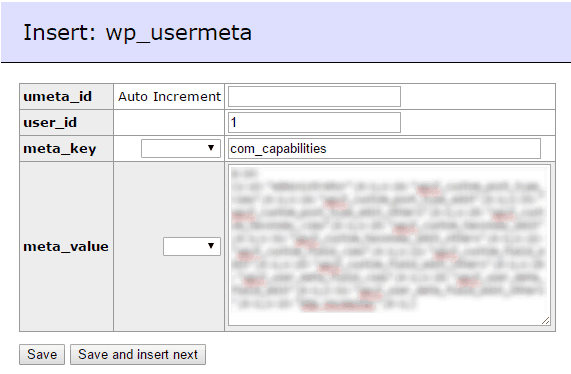
Add the second one in phpMyAdmin or Adminer. Open the wp_usermeta table and find the wp_capabilities row of your admin user:

Create a new row with the same user_id (usually 1), com_capabilities as the meta_key (your Site B prefix plus capabilities), and the same meta_value. Leave umeta_id empty so it auto-increments.
Or run the equivalent SQL:
INSERT INTO wp_usermeta (user_id, meta_key, meta_value)
VALUES (1, 'com_capabilities', 'a:1:{s:13:"administrator";b:1;}');Code language: JavaScript (javascript)
Give every shared user a role automatically
The same applies to everyone else. A user who registers on Site A can log in to Site B but has no role there, and Site B’s Users screen shows them as No role for this site. To give them Site B’s default role (Settings > General > New User Default Role) the first time they visit Site B, add this snippet to Site B:
// Site B: give shared users who have no role on this site the default role.
add_action( 'init', function () {
	$user = wp_get_current_user();
	if ( $user->exists() && empty( $user->roles ) ) {
		$user->set_role( get_option( 'default_role' ) );
	}
} );Code language: PHP (php)
It also gives the default role back to anyone you later set to “No role for this site” on Site B, so use it only if every Site A user should have access to Site B.
Step 4: Share the login cookie
The sites now share accounts, but you still have to log in on each one separately, because each install names and signs its login cookie differently. Three things have to match on both sites. When I tested, the shared login failed as long as either the cookie name or the keys were still different:
- the cookie name, set by
COOKIEHASH(by default a hash of each site’s own URL, so it differs), - the security keys and salts, which sign the cookie,
- the cookie domain, set by
COOKIE_DOMAIN, so a cookie set on one subdomain is sent to the other.
Add these lines to both wp-config.php files, using Site A’s address in both:
define( 'COOKIE_DOMAIN', 'yourwebsite.com' );
define( 'COOKIEHASH', md5( 'https://yourwebsite.com' ) );
/* That's all, stop editing! Happy publishing. */Code language: JavaScript (javascript)
Then copy the eight keys and salts from Site A‘s wp-config.php over the ones in Site B‘s:
define( 'AUTH_KEY', 'copy the value from Site A' );
define( 'SECURE_AUTH_KEY', 'copy the value from Site A' );
define( 'LOGGED_IN_KEY', 'copy the value from Site A' );
define( 'NONCE_KEY', 'copy the value from Site A' );
define( 'AUTH_SALT', 'copy the value from Site A' );
define( 'SECURE_AUTH_SALT', 'copy the value from Site A' );
define( 'LOGGED_IN_SALT', 'copy the value from Site A' );
define( 'NONCE_SALT', 'copy the value from Site A' );Code language: JavaScript (javascript)
Changing Site B’s keys logs everyone out of Site B once. After that, logging in on either site logs you in on both, and logging out of one logs you out of the other too, because both sites read the same session list from wp_usermeta.
For the role snippet in step 3, add it with a code snippets plugin on Site B rather than in the theme. This guide shows how.
all coding done then when i login in example.com/shop/wp-admin its say’s Sorry, you are not allowed to access this page. help me
Hi Yash,
You are right, I forgot to add the last part about giving admin privilleges to your account on the second website.
Give me about 30 minutes, I’ll update this article. It’s a pretty quick fix, you will need PHPMyAdmin or something similar to edit the database.
I’ve just updated to article, thanks for letting me know I forgot about that part.
When I perform this on my two sites I get the white screen of death. Luckily I had a backup so I could revert, but do you have any idea where I might have gone wrong? I followed everything step by step.
Not sure, but I would start by disabling plugins on both websites.
Just rename the plugins folder for each website and try again.
Wouldn’t it be easier to achive the same result using a multisite installation?
It would, but if your website is not part of a multisite network already, then you still have to go through the extra work of migrating it.
In my case, I thought it will be easier to just sync login sessions between different installs than migrating the website to a multisite network. Plus, it’s more interesting :)
Quick question! when you log into site A are not supposed to be logged into Site B automatically?
If you are logged into any of your sites, you should also be logged in on the other ones too.
If it did not work for you, then you might have skipped a step (or made a mistake in it), most likely the login cookies.
Thank you so much for sharing this tips, I have tried the tips from others but it does not work at all, the others tips is just wasting time but after I followed your step and it is work like a Charm.
my recommendation to others, please just follow the step on this page so you are not wasting your times trying other tips, please follow “carefully” the step:
Get Administrator rights on your Site B
The main issue is with the admin: “sorry, you are not allowed to access this page.”
I install Adminer and follow the step and all done.
Thank you.
I’m glad you managed to get it working. Cheers!
Hi there, thank you for this!
However I still have a problem and the logged in users are not being shared between the 2 websites.
Question – On Site B config.php, shall we have :
define( ‘COOKIE_DOMAIN’, ‘SITEByourwebsite.com’ );
or define( ‘COOKIE_DOMAIN’, ‘SITEAyourwebsite.com’ ); ???
Both (or all, if you use it on more than 2 websites) should have the same COOKIE_DOMAIN.
So you can just copy-paste these 2 lines from Site A’s wp-config.php to Site B’s wp-config.php.
I hope this makes it clear.
Hey,
Thank’s for the tutorial.
If you want create administrators whitout change capabilities on phpmyadmin, use this hook.
add_action(‘user_register’, ‘user_capabilities’, 10, 1);
add_action(‘profile_update’, ‘user_capabilities’, 10, 2);
function user_capabilities($user_id) {
$user_role = $_POST[‘role’];
$permissions = array($user_role => 1);
//MAIN
update_user_meta($user_id, ‘wp_capabilities’, $permissions);
//COM
update_user_meta($user_id, ‘com_capabilities’, $permissions);
}
Regard’s
Great article Marius.
Quick question.
I’m using the multisite setup…do you know of a way to share the logins and auto login the user? Ultimately keeping the same roles?
I’ve tried a couple plugins but none really transfer the buddypress and bbpress content. Please advise, thanks.
Kendell.
That was such an excellent tutorial. It saved me a lot of time and resources. Thank you very much :)
I was hovering between https://kinsta.com/blog/share-logins-wordpress/ and this post to make sure everything went well. Luckily, it wasn’t that complex!
Describing the process to sync User Roles would have made this a complete solution (Automatically Duplicate Caps and Levels with a Function https://kinsta.com/blog/share-logins-wordpress/)
Thanks!
Great article, and much shorter than others I found.
I have a question though, just to make sure. Are role capabilities and levels also shared on both site?
I’m using Paid Membership Pro in both sites, would this still work?
Thanks .
Good Morning.
I make the configuration in the indicated files, and add the record in the database. but I still get the error “sorry, you are not allowed to access this page.”
If you can help me please
Good Morning.
I make the configuration in the indicated files, and add the record in the database. but I still get the error “sorry, you are not allowed to access this page.”
If you can help me, please.
Great tutorial. Unfortunately this seem to work perfectly for fresh installs but I need to accomplish the same with 3 existing sites (the main site and two on subdomains) that using the same wp table prefix. Any tips on how to tackle this? Thanks!
So 3 different databases but they all have the same prefix correct? If so, for the 2 subdomain databases change the prefix to something else, there should be a find and replace sql code to make the transition quick. Make sure you also update the prefix in the WP config. Check to make sure sites are still working fine. Afterwards merge those two databases with the main domain database. Now you have one big database with the 3 prefixes and you should be able to follow the tutorial to get the results you need.
Thank for your trick.
But I still stuck when I logged in site A and then I opened site B’s home, It’s showed Admin bar. But when I clicked to open dashboard. I refresh me to login page. What’s problem?
my Site A’s address site is “www.mysite.com” (wp is in http://www.mysite.com/wp)
my SiteB’s address site is “www.mysite.com/class”
Hi guys, i tried to do that but this is the result : Error establishing a database connection .
When i change DB_Name on site B to DB Name of site A, thats the error.
Anyone here can explain what i have to do.
Thank you :)
Thanks for the article.
Will it not work on local host?
After I am defining the 2 lines of cookie parameters login is not happening.it is redirecting to same login page.If i remove the cookie lines from config file then it is working.
Hi, I followed every detail, but when I implement it, it prompt me to create a new wp site. When I installed, it happens that I able to access the dashboard but all the things I did from the previous site is gone. How can I able to transfer those? The Themes and Plugins that I used in site B? Thanks.
Hi there – I find your tutorial really intresting, and makes a lot of logical sense. However, I must admit, that because we have to change configurations and table pre-fixes – it can feel intimidating. Making one mistake can spell doom.
You mentioned trying wp-remote-users-sync – which I was happy to try. But it doesnt work as expected.
> If user logs into one site, they are not necessary logged into the other site.
> If user changes password on one site, it’s not immediately changed on the other site.
> I can not get it to work seamlessly
I am considering trying the approach suggested in your post – sharing a database.. and having the same user and user-meta table between both. Makes more sense- and leaves little room for poor experiences between sites.
Questions:
1. Obviously I will require the same user details on both sites? If I install ACF on one site, and add additional user fields – it will affect the other site ? SO I would need ACF on both sites?
2. If a user signs in on Site A – he is free to jump between Site A and Site B without the need for login repeatedly ?
3. if both sites A and B have woo commerce installed – How will it affect purchases on Site A and Site B ? Where will he see his orders ?
4. Can user purchase items from SiteA and SiteB simultaneously ? or will it have to be separate purchases ?
Hi Manesh,
I’m sorry, but I haven’t used this setup in a long time and my scenario was a lot simpler than use. Unfortunately, I don’t have an useful answer to your questions.